
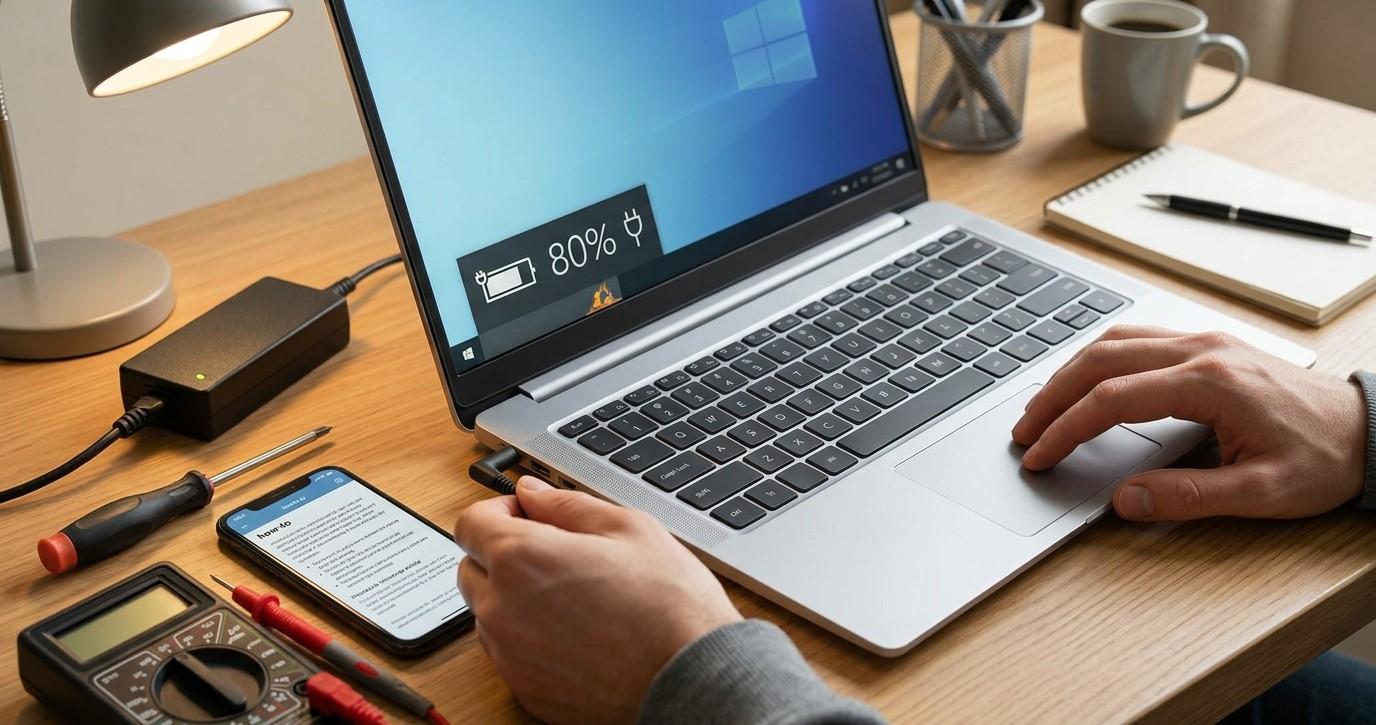
It can be concerning when a laptop appears to stop charging at a specific battery percentage. You may connect the charger and notice that the battery remains stuck at 80%, 90%, or another level instead of reaching 100%. While this can sometimes indicate a battery or charging problem, it is not always a sign that something is broken. Many modern laptops intentionally limit charging to a certain percentage to protect battery health and extend its useful lifespan.
However, if the laptop previously charged normally and suddenly stops charging at a particular percentage, the cause could involve battery settings, charging software, the power adapter, drivers, or hardware. Understanding the possible causes can help you troubleshoot the issue safely. If the problem continues, professional computer repair Albany, laptop repair Albany, and computer repair Albany NY services can help identify the underlying cause.
Check Whether Battery Protection Is Enabled
One of the first things to check is whether your laptop has a battery protection or charging limit feature enabled.
Many laptop manufacturers include software that allows users to stop charging at a selected percentage. For example, a laptop may intentionally stop charging around 80% to reduce battery wear.
These features may be called:
- Battery Health Mode
- Conservation Mode
- Battery Care
- Charging Limit
- Battery Protection
- Smart Charging
If your laptop consistently stops at exactly the same percentage, especially around 80%, a charging limit is a likely explanation.
Check your laptop manufacturer's battery-management application and review its charging settings before assuming the battery is defective.
Check Windows Battery Settings
Windows can also influence battery behavior through smart charging and power-management features.
Open your laptop's battery and power settings and look for options related to battery optimization or smart charging.
The exact features vary depending on your Windows version and laptop manufacturer.
If you recently changed battery settings or installed manufacturer software, compare the current configuration with your previous setup.
A consistent charging limit is often intentional rather than a hardware failure.
Inspect the Charger and Power Adapter
If your laptop stops charging at different percentages or behaves inconsistently, check the charger.
Inspect the power adapter and cable for:
- Frayed wires
- Bent connectors
- Loose connections
- Damaged insulation
- Excessive heat
- Intermittent charging
Make sure the charger is firmly connected to both the wall outlet and laptop.
If the laptop displays messages such as "Plugged in, not charging," the adapter may not be delivering the expected power.
If you have access to a manufacturer-approved compatible charger, testing it can help determine whether the original adapter is causing the problem.
Avoid using a charger with incorrect voltage or an unsuitable connector.
Check the Charging Port
A damaged or loose charging port can prevent the laptop from receiving consistent power.
If moving the charging cable causes charging to start and stop, the port or connector may have a physical problem.
Common signs of charging-port trouble include:
- Charging only at certain cable angles
- Intermittent charging
- Loose connector fit
- Charging stopping when the laptop moves
- No charging response from the adapter
Do not force the connector into the port. Repeated movement or pressure can make physical damage worse.
Professional laptop repair Albany technicians can inspect the charging port and determine whether it needs repair or replacement.
Restart the Laptop
A temporary software or power-management issue can sometimes make the battery status inaccurate.
Save your work, disconnect unnecessary accessories, and restart the laptop.
After Windows loads, reconnect the charger and check whether the battery begins charging normally.
This simple step can clear temporary system problems without changing important settings.
Update Battery and System Drivers
Windows uses drivers and system components to communicate with the laptop's battery and power-management hardware.
If these components become outdated or corrupted, the battery status may not display correctly or charging behavior may become unusual.
Check Device Manager for battery-related entries and look for available driver updates through trusted sources.
It is also useful to install appropriate Windows updates and manufacturer-provided system updates.
Avoid downloading battery drivers from unfamiliar websites.
Check the Laptop Manufacturer's Power Utility
Many laptops include manufacturer-specific software that controls charging behavior.
These applications can include features designed to protect battery health by limiting charging.
For example, a laptop may be configured to charge to a specific percentage while plugged in for long periods.
If you recently installed or updated the manufacturer's utility, check whether its charging settings changed.
If you cannot identify which setting controls charging, professional assistance can help prevent accidental changes to other system settings.
Battery Calibration May Help With Incorrect Readings
Sometimes a laptop's displayed battery percentage does not accurately reflect the battery's actual charge level.
Battery calibration can sometimes help correct inaccurate readings, although it should not be performed unnecessarily.
If the laptop says it is stuck at a certain percentage but the battery behaves normally afterward, the issue may involve battery reporting rather than charging itself.
Because calibration procedures vary between laptop manufacturers, follow the manufacturer's recommended process rather than using random instructions from unknown sources.
Consider Battery Age and Health
Laptop batteries naturally lose capacity as they age.
An older battery may no longer charge or hold power as effectively as it did when new.
Signs of battery deterioration can include:
- Rapid battery drain
- Unexpected shutdowns
- Significant reduction in runtime
- Battery percentage changing unusually quickly
- Charging inconsistencies
- Excessive battery heat
If the laptop is several years old and the battery has experienced heavy use, replacement may eventually be necessary.
Never attempt to open or puncture a swollen lithium-ion battery. A visibly swollen or damaged battery should be handled by a qualified professional.
Check for Overheating
Excessive heat can affect charging behavior.
Laptops may temporarily limit charging when internal temperatures become too high in order to protect the battery and other components.
Make sure the laptop's ventilation openings are not blocked. Use the computer on a hard, flat surface and avoid placing it on soft surfaces that restrict airflow.
If the laptop becomes unusually hot while charging, professional diagnostics may be appropriate.
Test Whether the Percentage Is Always the Same
Pay attention to exactly where charging stops.
If it consistently stops at the same percentage, such as 80%, a battery protection feature is more likely.
If it stops at random percentages, repeatedly switches between charging and not charging, or eventually stops charging altogether, there may be an adapter, battery, charging port, software, or hardware problem.
This distinction can provide useful information for troubleshooting.
When to Contact a Professional Repair Service
If your laptop refuses to charge properly after checking battery settings, the charger, drivers, and power-management software, professional diagnostics can help identify the problem.
Experienced computer repair Albany technicians can test the battery, charger, charging circuitry, operating system, and related hardware.
For laptop-specific charging problems, laptop repair Albany professionals can inspect the charging port and battery condition while determining whether repair or replacement is appropriate.
If you need dependable computer repair Albany NY services, professional diagnosis can also help prevent unnecessary replacement of components that are still functioning properly.
Conclusion
A laptop that stops charging at a certain percentage is not necessarily experiencing a serious hardware problem. Modern laptops often include charging limits designed to protect battery health, particularly when they consistently stop around a specific percentage.
Start by checking battery protection settings, Windows power options, the charger, charging port, drivers, and manufacturer software. Also consider battery age, overheating, and inaccurate battery readings.
If the laptop stops charging at inconsistent percentages, becomes unusually hot, or shows signs of battery or charging-port damage, professional assistance is recommended. Computer repair Albany, laptop repair Albany, and computer repair Albany NY services can diagnose the charging system and determine whether a setting adjustment, battery replacement, charger replacement, or hardware repair is appropriate.
Addressing charging problems early can help protect the laptop's battery, prevent unexpected shutdowns, and keep the device dependable for everyday work and personal use.

 English
 French
 Spanish
 Deutsch
 Italiano
 Russian