
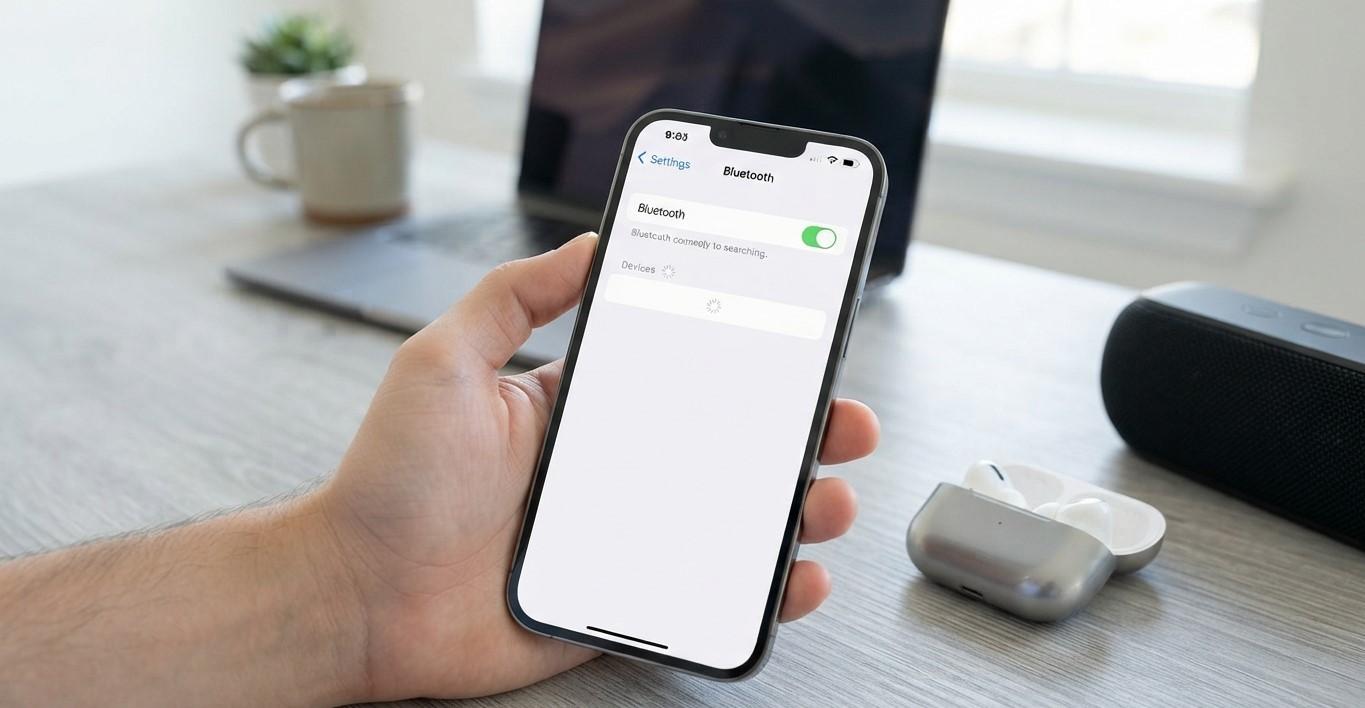
Bluetooth allows your iPhone to connect wirelessly to AirPods, headphones, speakers, cars, keyboards, game controllers, smart devices, and other accessories. When Bluetooth stops working properly, your iPhone may fail to find an accessory, refuse to pair, disconnect repeatedly, or connect without sending audio to the expected device.
For customers searching for cell phone repair brooklyn ny, understanding the cause of an iPhone Bluetooth problem can help determine whether the issue is related to the accessory, settings, software, or the phone itself. Avenue D Cellular can help troubleshoot persistent iPhone connectivity problems, while people looking for iphone repair brooklyn may need professional diagnosis if Bluetooth continues failing with multiple working accessories.
Table of Contents
- Why Is My iPhone Bluetooth Not Working?
- Common Causes of iPhone Bluetooth Problems
- How to Fix Bluetooth on an iPhone
- What to Do When Bluetooth Connects but Does Not Work
- When Your iPhone May Need Professional Repair
- How to Prevent Bluetooth Problems
- Frequently Asked Questions
- Final Thoughts
- CTA
Why Is My iPhone Bluetooth Not Working?
Bluetooth problems can occur in several different ways. Your iPhone might not detect an accessory, pairing may fail, or an accessory that previously worked may suddenly disconnect.
Some common symptoms include:
- Bluetooth devices do not appear in the list.
- An accessory appears but will not connect.
- Bluetooth keeps disconnecting.
- Headphones connect but produce no sound.
- A Bluetooth speaker connects but audio comes from the iPhone.
- Your car cannot pair with the iPhone.
- Bluetooth is greyed out or cannot be enabled.
- Only one particular accessory refuses to connect.
Apple recommends checking the accessory's power, proximity, discovery mode, compatibility, and pairing status when troubleshooting Bluetooth connection problems.
Common Causes of iPhone Bluetooth Problems
1. Bluetooth Is Turned Off
Start with the simplest possibility.
Go to:
Settings > Bluetooth
Make sure Bluetooth is turned on. Apple recommends using the Settings app when you need to fully manage Bluetooth connections.
You can also use Control Center to disconnect Bluetooth accessories, but Apple notes that tapping the Bluetooth button there disconnects accessories rather than completely turning Bluetooth off.
2. The Bluetooth Accessory Is Too Far Away
Bluetooth connections work within a limited range. Apple states that an iPhone should generally be within about 33 feet (10 meters) of a Bluetooth accessory for pairing.
Walls, furniture, other electronics, and physical distance can affect wireless performance.
Move your iPhone closer to the accessory and try connecting again.
3. The Accessory Is Not in Pairing Mode
A Bluetooth device usually needs to be discoverable before your iPhone can pair with it.
Turn on the accessory and place it into pairing or discovery mode according to its instructions. Then open Settings > Bluetooth on your iPhone and look for the device.
If the accessory does not appear, check its manufacturer's instructions for the correct pairing procedure.
4. The Accessory Battery Is Low
Wireless headphones, speakers, keyboards, controllers, and other Bluetooth devices need sufficient power to operate.
If the accessory is not responding, charge it fully or replace its batteries if applicable. Apple specifically recommends checking that a Bluetooth accessory is powered and sufficiently charged when it will not connect.
5. The Accessory Is Connected to Another Device
A Bluetooth accessory may already be connected to another phone, tablet, computer, or car.
If it pairs with other devices but not your iPhone, disconnect or unpair it from those devices and then try pairing it with your iPhone again. Apple recommends this step when an accessory connects to other devices but not the iPhone.
6. The Saved Pairing Is Causing Problems
Sometimes an existing Bluetooth pairing becomes problematic.
You can remove the accessory from your iPhone and pair it again.
Go to:
Settings > Bluetooth
Tap the information button next to the accessory and select:
Forget This Device
Then place the accessory back into discovery mode and pair it again. Apple provides this as a standard troubleshooting step for Bluetooth accessories.
7. Bluetooth Permissions Are Disabled for an App
Some Bluetooth accessories rely on companion applications.
If the accessory's app cannot communicate properly with the device, check:
Settings > Privacy & Security > Bluetooth
Make sure Bluetooth access is enabled for the relevant application. Apple recommends checking Bluetooth permissions when an accessory uses an app.
8. Temporary iOS Software Problem
A temporary software issue can affect Bluetooth connections.
If Bluetooth suddenly stops behaving normally, restart your iPhone and test the connection again.
It is also worth checking whether an iOS update is available, especially if the problem began after installing or updating an application or changing system settings.
9. Compatibility Issues
Not every Bluetooth accessory works identically with every iPhone or iOS version.
If an accessory connects successfully to another device but cannot connect to your iPhone, check whether it is compatible with your specific iPhone model and current software. Apple recommends contacting the accessory manufacturer to confirm compatibility when connection problems continue.
10. Possible iPhone Hardware Damage
If Bluetooth stops working with every accessory, the problem may be more serious.
Hardware-related problems become more worth investigating if Bluetooth problems started after:
- A significant drop
- Liquid exposure
- Physical damage
- A previous repair
- Other wireless connectivity problems
If Bluetooth works normally with some accessories but not one specific device, the accessory itself is more likely to require attention. If no Bluetooth accessories can connect, the iPhone may need professional diagnosis.
How to Fix Bluetooth on an iPhone
Step 1: Restart the Bluetooth Accessory
Turn the accessory off, wait a few seconds, and turn it back on.
Make sure it has enough battery power and is close to your iPhone. Apple recommends restarting the accessory and checking its power when troubleshooting connection problems.
Step 2: Restart Your iPhone
Restart the iPhone normally and then try pairing the accessory again.
A restart can clear temporary software problems affecting wireless connections.
Step 3: Forget and Re-Pair the Device
Open:
Settings > Bluetooth
Tap the information button beside the problematic accessory, select Forget This Device, and confirm.
Then put the accessory into pairing mode and reconnect it.
Step 4: Check Bluetooth Permissions
If the accessory depends on a companion app, go to:
Settings > Privacy & Security > Bluetooth
Make sure the app has permission to use Bluetooth.
Step 5: Update iOS and the Accessory
Check Settings > General > Software Update for an available iOS update.
Also check whether the accessory manufacturer provides firmware updates through its companion application.
Keeping both devices current can help prevent compatibility problems.
Step 6: Test Another Bluetooth Accessory
Try connecting a different Bluetooth device to your iPhone.
For example, if your headphones will not connect, test another pair of headphones or a Bluetooth speaker.
This simple test can help determine whether the problem is specific to one accessory or affects Bluetooth on the iPhone more generally.
What to Do When Bluetooth Connects but Does Not Work
Sometimes an iPhone successfully pairs with a Bluetooth accessory but does not behave as expected.
Bluetooth Headphones Are Connected but There Is No Sound
Check the audio output destination while playing music or another audio source. Your iPhone may still be sending audio through its built-in speaker or another connected device.
Apple allows you to select a Bluetooth accessory as the playback destination while audio is playing.
Bluetooth Speaker Connects but Audio Is Poor
Move the iPhone and speaker closer together and remove possible sources of interference. Apple notes that relocating or reorienting the iPhone and connected accessory may improve wireless performance.
Car Bluetooth Is Not Working
If your iPhone connects to other Bluetooth devices but not your vehicle, check the car's Bluetooth settings and pairing instructions.
You may need to remove the old iPhone connection from the car and pair the devices again.
Also make sure the iPhone is not already connected to another Bluetooth audio device.
Reset Network and System Settings
If Bluetooth problems continue after basic troubleshooting, you may consider resetting all settings.
Go to:
Settings > General > Transfer or Reset iPhone > Reset > Reset All Settings
Apple states that this can resolve problems caused by incorrect or damaged settings without deleting personal data such as photos, messages, apps, and documents. However, it does restore many settings to their defaults and removes Bluetooth pairings, Wi-Fi passwords, VPN configurations, and other preferences.
Because you will need to configure certain settings again, consider this a later troubleshooting step rather than the first thing to try.
When Does an iPhone Need Professional Repair?
Most Bluetooth problems are caused by pairing, accessory, software, or settings issues. However, professional inspection may be appropriate when the problem affects every Bluetooth accessory.
Consider having your iPhone checked if:
- Bluetooth cannot be turned on.
- The Bluetooth setting is greyed out.
- No Bluetooth accessories can connect.
- Bluetooth stopped working after a drop.
- The phone experienced liquid exposure.
- Wi-Fi and Bluetooth problems appeared at the same time.
- The problem began after a repair.
- Restarting and resetting settings did not solve the issue.
Apple recommends contacting support when Bluetooth cannot be turned on, no Bluetooth accessories can connect, or the accessory manufacturer has confirmed that the accessory works correctly.
A professional technician can inspect the iPhone and determine whether the issue is software-related or connected to internal hardware.
How to Prevent Bluetooth Problems
Keep Your iPhone Updated
Install appropriate iOS updates and keep Bluetooth-dependent applications current.
Keep Accessories Charged
Low battery power can prevent wireless accessories from connecting reliably.
Avoid Unnecessary Pairings
Remove old or unused Bluetooth devices when appropriate. This can make it easier to identify the device you actually want to use.
Keep Devices Within Range
Keep the iPhone and Bluetooth accessory reasonably close, particularly during initial pairing. Apple recommends a distance of about 33 feet or less for pairing.
Protect Your iPhone
Drops and liquid exposure can potentially affect internal wireless components. Using a protective case and handling the phone carefully can reduce the risk of physical damage.
Frequently Asked Questions
Why won't my iPhone find my Bluetooth device?
Make sure the accessory is powered on, charged, nearby, and in discovery mode. If it was previously paired with another device, disconnect it there before trying to pair it with your iPhone.
Why does my iPhone keep disconnecting from Bluetooth?
Possible causes include distance, interference, low accessory battery, software problems, or an unstable pairing. Restart both devices and forget and re-pair the accessory.
Why is Bluetooth connected but there is no sound?
Check the audio playback destination while playing media. Your iPhone may be connected to the accessory but sending audio through another output.
Can a software update fix Bluetooth problems?
Yes, software problems can sometimes affect wireless connectivity. Keeping iOS and the accessory's software updated can help address compatibility or system issues.
Should I forget my Bluetooth device and pair it again?
Yes. If an accessory was previously paired but no longer connects correctly, forgetting the device and putting the accessory back into discovery mode can help establish a fresh connection.
Can a damaged iPhone affect Bluetooth?
Potentially. If Bluetooth stopped working after a drop, liquid exposure, or repair, internal hardware should be considered, particularly if multiple wireless functions are affected.
Why does Bluetooth work with one device but not another?
The problem may be specific to the accessory, its compatibility, its pairing history, or its firmware. Test the problematic accessory with another compatible device and test another Bluetooth accessory with your iPhone.
What should I do if my iPhone Bluetooth is greyed out?
Restart the iPhone first. If Bluetooth remains unavailable or greyed out, Apple recommends contacting support, particularly if the problem prevents all Bluetooth accessories from connecting.
Final Thoughts
When Bluetooth is not working properly on an iPhone, the problem does not necessarily mean the phone has a hardware fault. Start by checking the accessory's battery, keeping both devices close together, confirming discovery mode, restarting the accessory and iPhone, and forgetting and re-pairing the Bluetooth device.
If the problem affects only one accessory, compatibility or the accessory itself may be responsible. If no Bluetooth accessories can connect, or Bluetooth cannot be enabled at all, further diagnosis may be necessary.
For customers searching for cell phone repair brooklyn ny, Avenue D Cellular can help with iPhone connectivity troubleshooting and repair needs. If you are looking for iphone repair brooklyn, professional inspection can help determine whether persistent Bluetooth problems are caused by software, settings, accessory compatibility, or an internal hardware issue.
CTA
Is Your iPhone Bluetooth Not Working?
Don't let Bluetooth problems interfere with your headphones, speakers, car connection, keyboard, or other wireless accessories. Try the troubleshooting steps above, and if the problem continues across multiple devices, consider having your iPhone professionally inspected.
Avenue D Cellular can assist with iPhone troubleshooting and repair. For cell phone repair brooklyn ny and iphone repair brooklyn, professional diagnosis can help identify the cause of persistent Bluetooth problems and determine the appropriate repair solution.

 English
 French
 Spanish
 Deutsch
 Italiano
 Russian